
 by on
by on Our Get a Link feature comes in handy when you’re unable to work from your usual workstation or you need to send a case to another agent. Simply run an analysis, get the link, and share it through email or instant message. Once you or your recipient receives the link, open it and you’ll be sent to BPP Online where you can continue your work with the parameters set from the analysis.
How to get a case link on Best Plan Pro 2.0
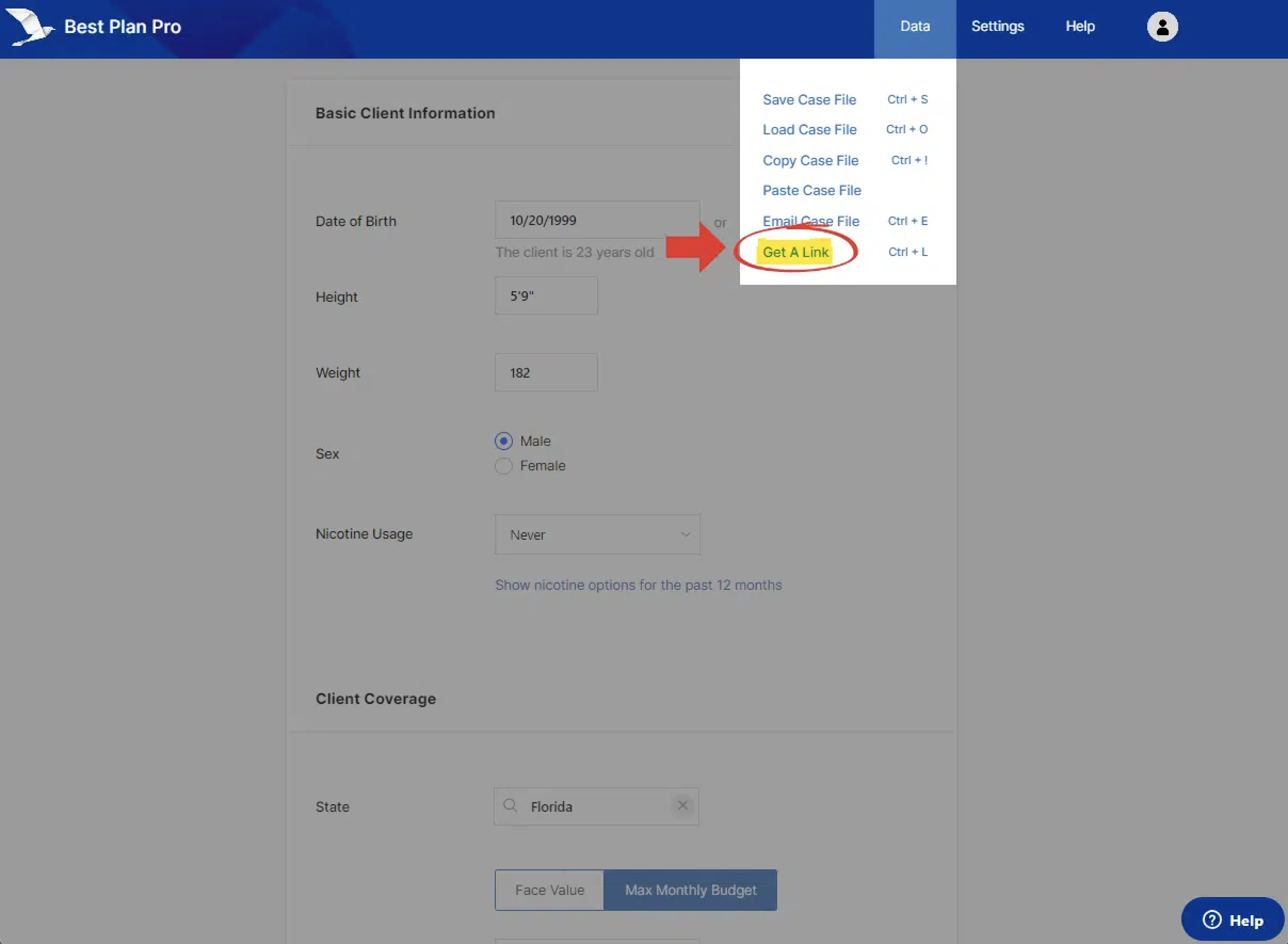
This feature can be found under Data > Get a Link. The keyboard shortcut Ctrl+L works as well (depending on your browser).
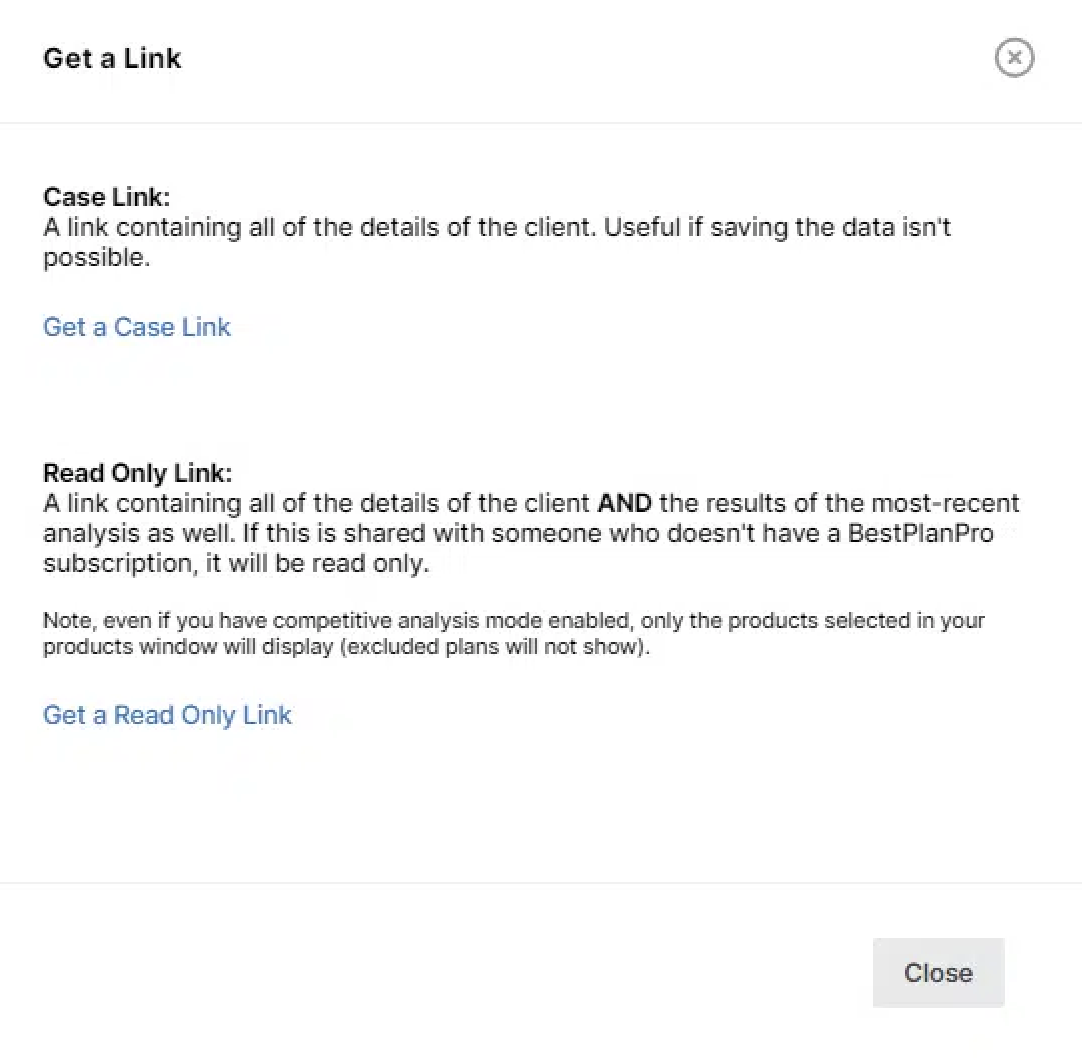
You’ll see this window; click on Get a Case Link.
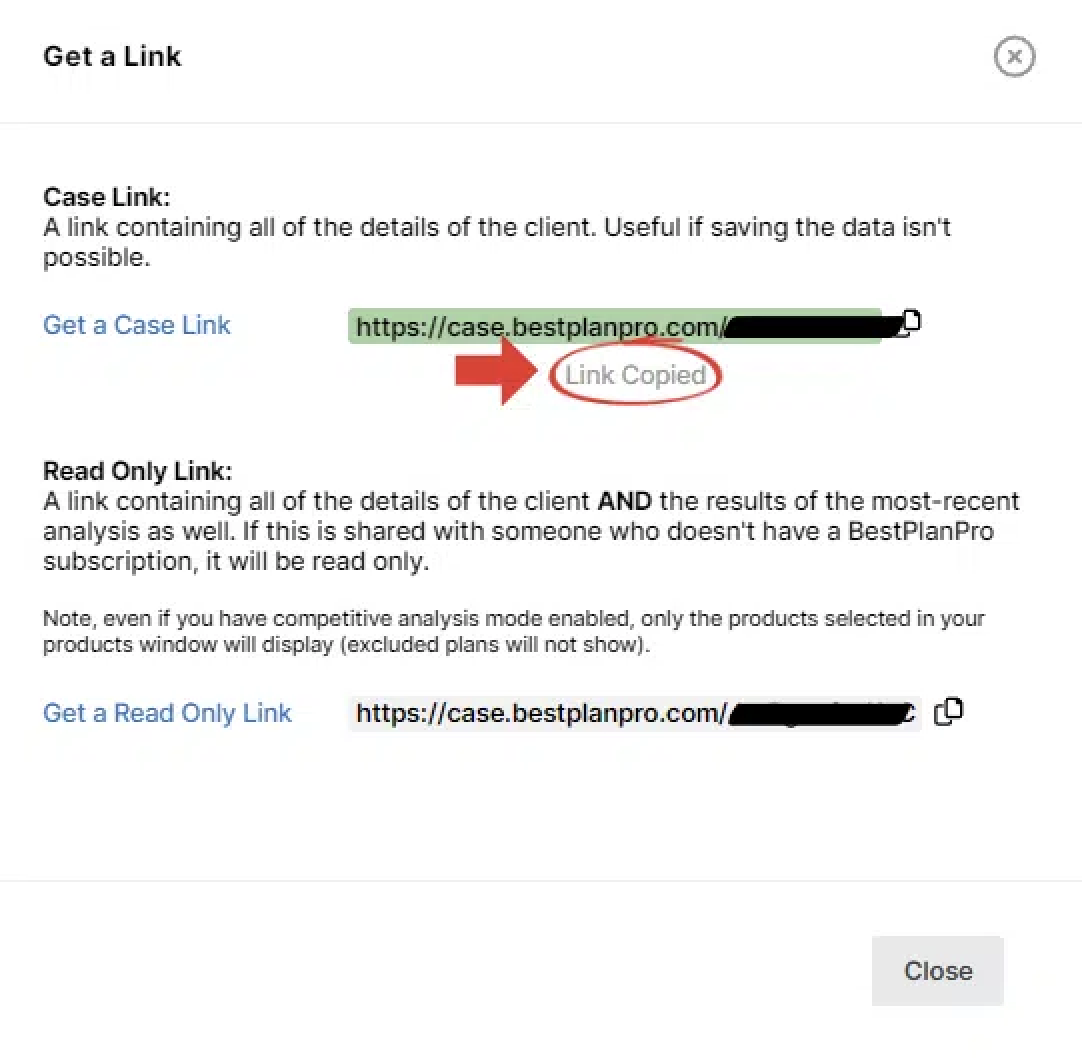
After clicking either Get a Case Link or Read Only Link, a link for each will appear as shown below:

When using the Online Version, you have to click on the generated link to have it copied. In doing so, the link will turn green and you’ll see Link Copied displayed below it.
Note: If you modify your case, it will not update the link. You’ll need to generate a new link.
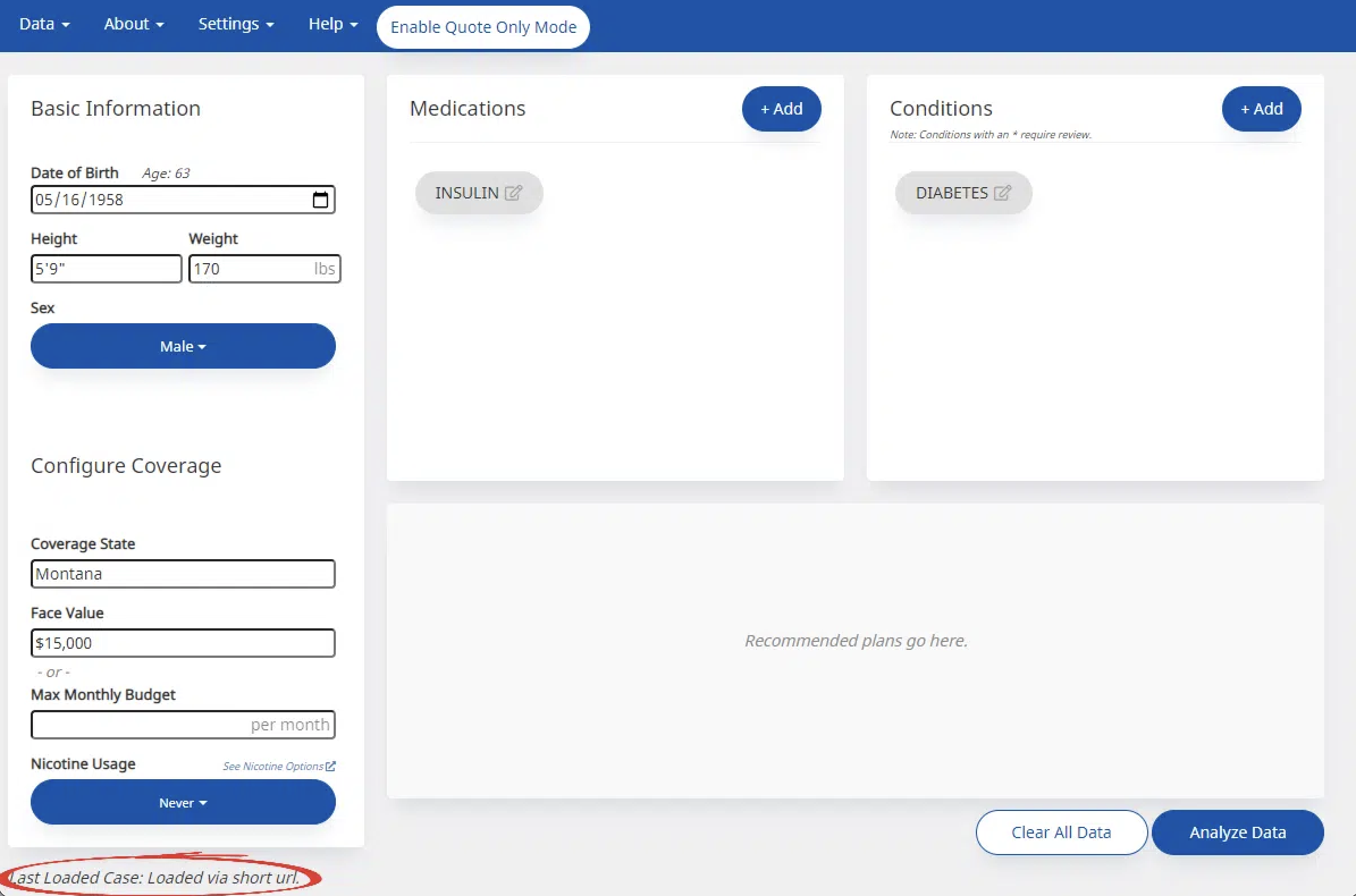
How to get a case link on Modern, Classic, and Windows Versions
This feature can be found under Data > Get a Link the keyboard shortcut Ctrl+L works as well (depending on your browser).
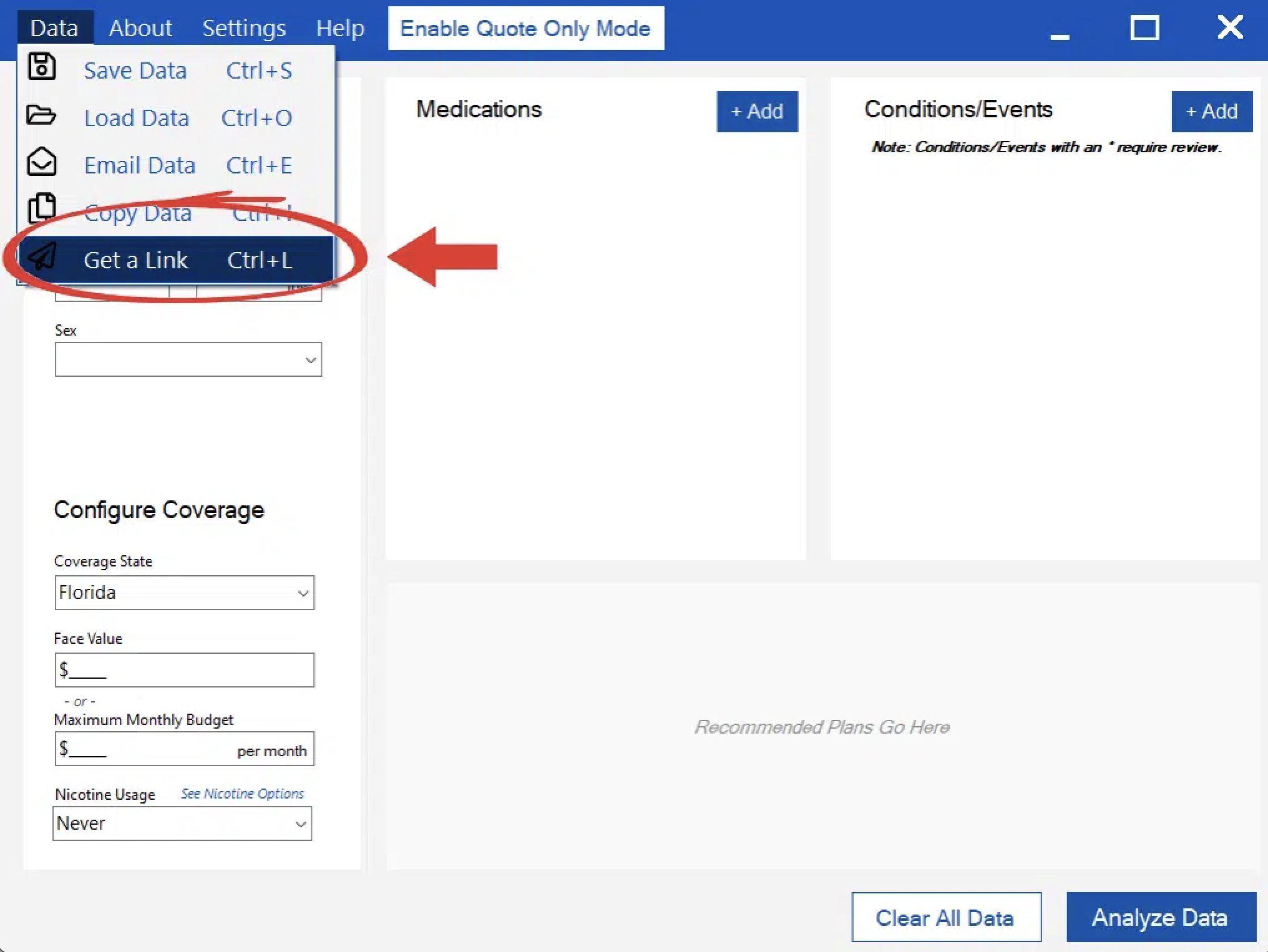

You’ll see this window; click on Get a Case Link.
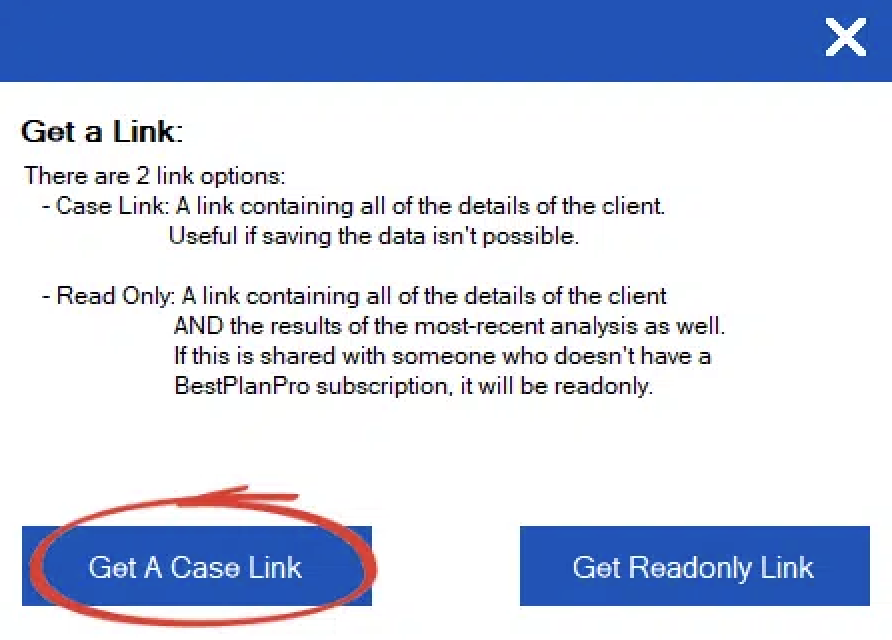

Then you’ll see this message:
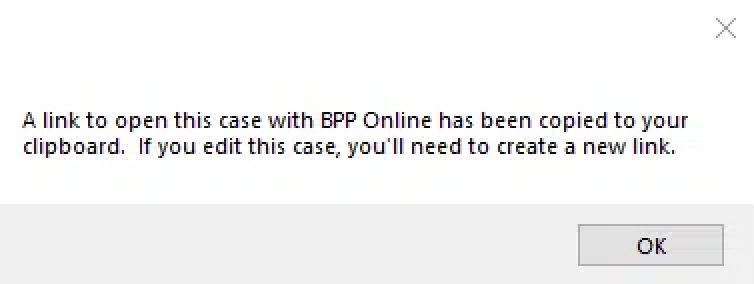

After you click OK on the Windows Version, you’ll have a link copied to your clipboard; you can paste that link wherever you’d like. The link copied to your clipboard will look something like this: case.bestplanpro.com/V11VcqIc3S9.
When using the Online Version, you have to click on the generated link to have it copied. In doing so, the link will turn green with the message Link Copied! displayed below it.
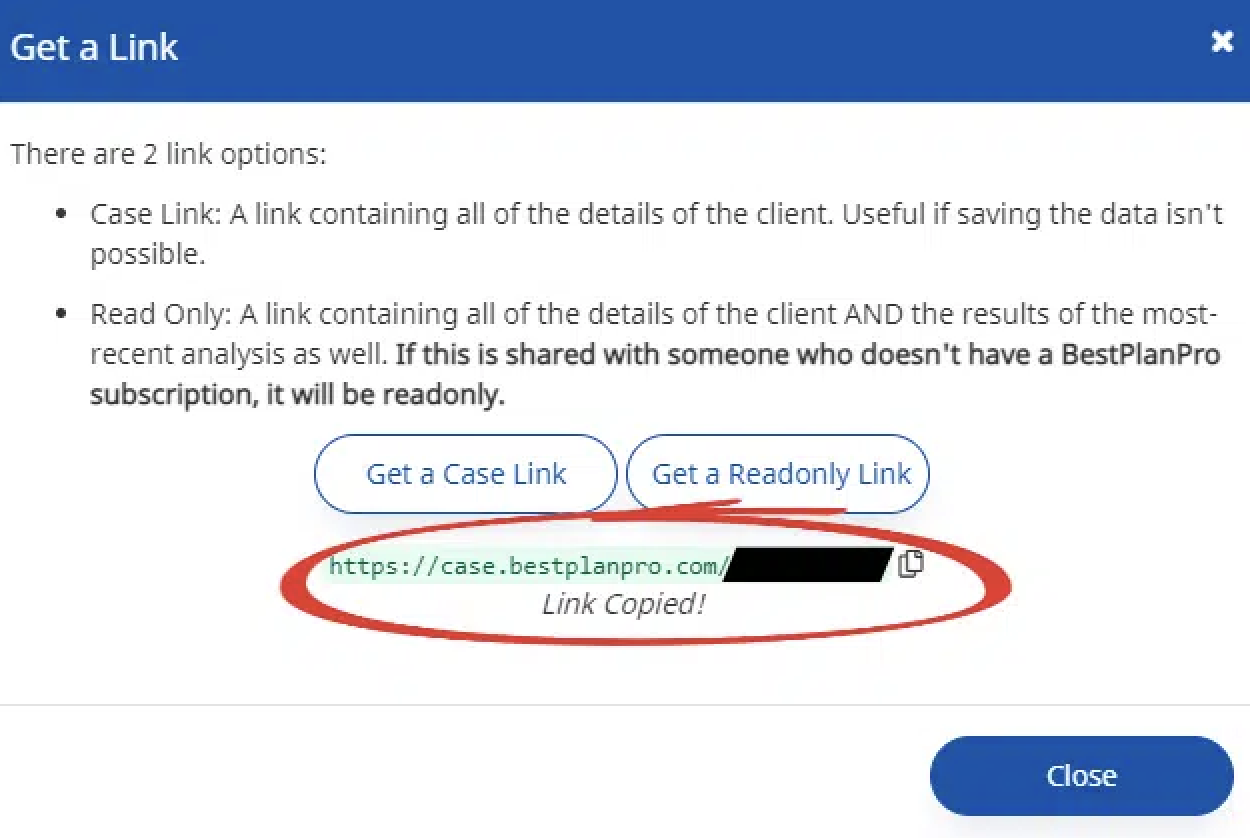
Need to send your analysis to a customer or agent without a BPP license? Send them a Read-Only Link.