
 by
by How will BPP save me time keeping track of my client’s health?
In Best Plan Pro, when you go to enter a Medication, our system will infer or guess what condition the medication is used to treat and list them out for the agent to choose.
Where It Is.
Depending on the version you’re using, look for the Add Medication button to open up a window where you can input your medications.
Windows Version
Online Version
What You Get.
After you type in the name of the medication, the panel to the right will populate with all the conditions that the medication is usually used to treat. Upon clicking on one of the conditions from that panel, the condition will be transferred to the Prescribed to Treat field automatically. If you need to change the condition, you can simply click on another condition in the side panel or manually type it into the field yourself. Once you’re satisfied with your information, click Save and you’ll see the medication name and the condition populate the Medication and Condition fields. Note that there is an * next to the predictive condition which means that review is required to complete the information about the condition. Simply click on the condition in question and fill out the corresponding form.
Windows Version
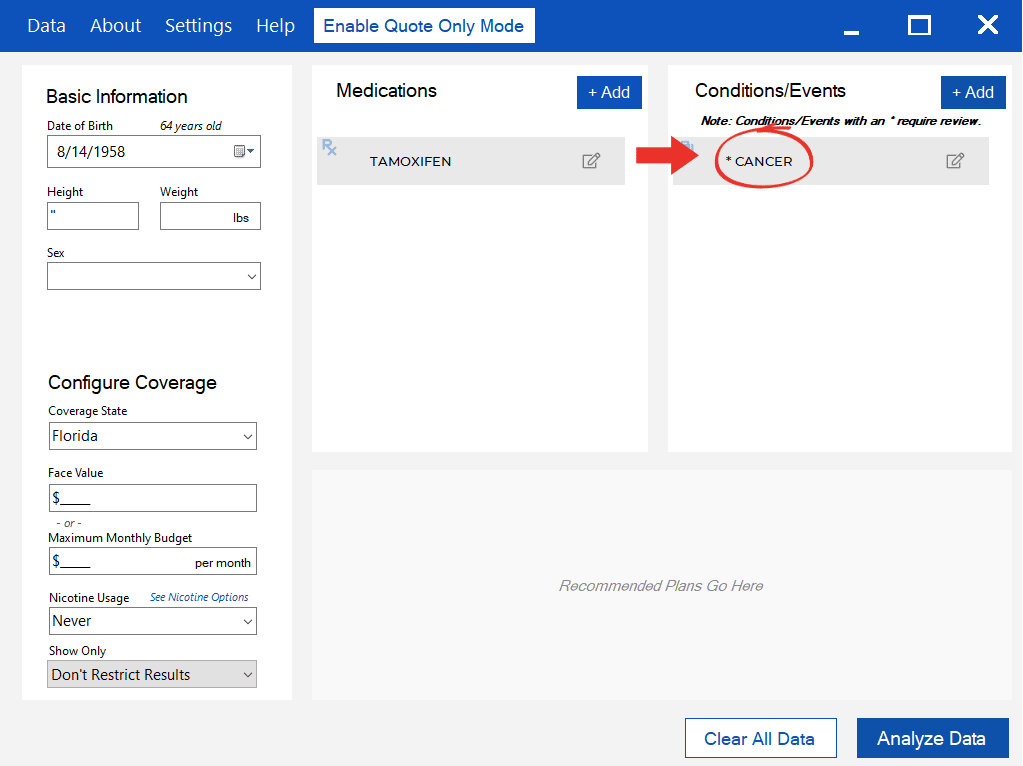
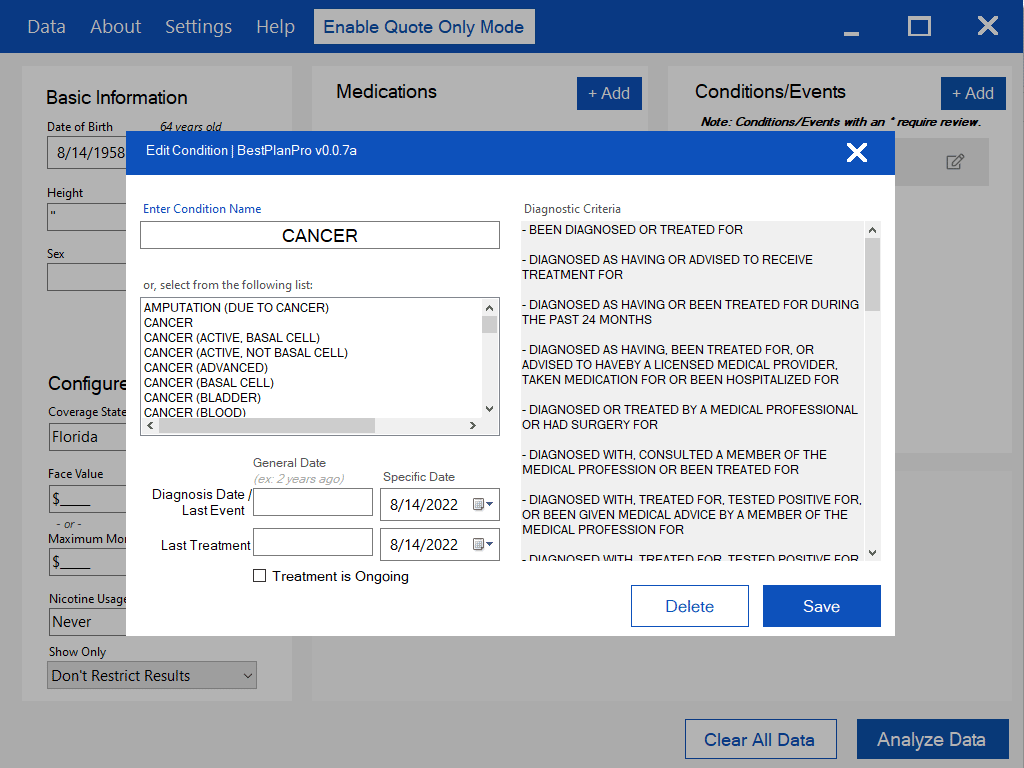
Online Version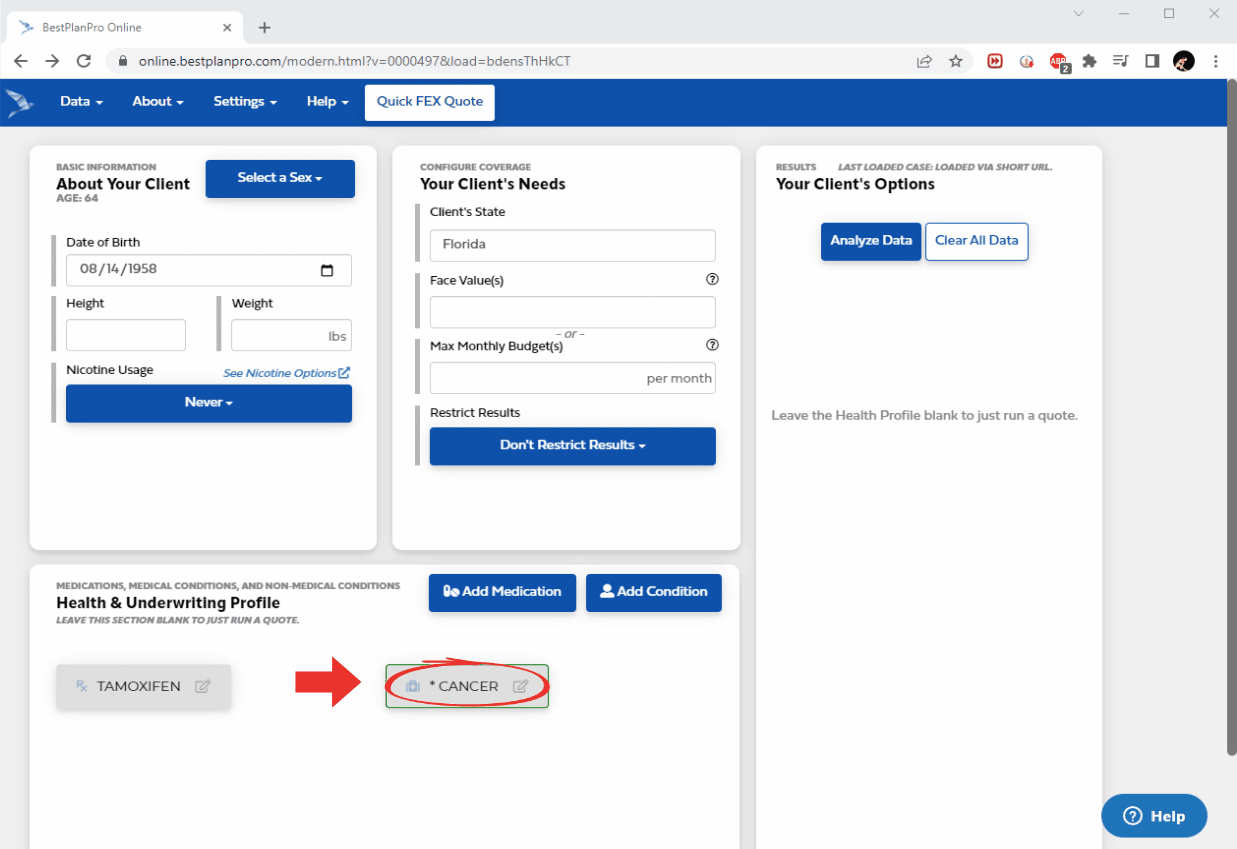
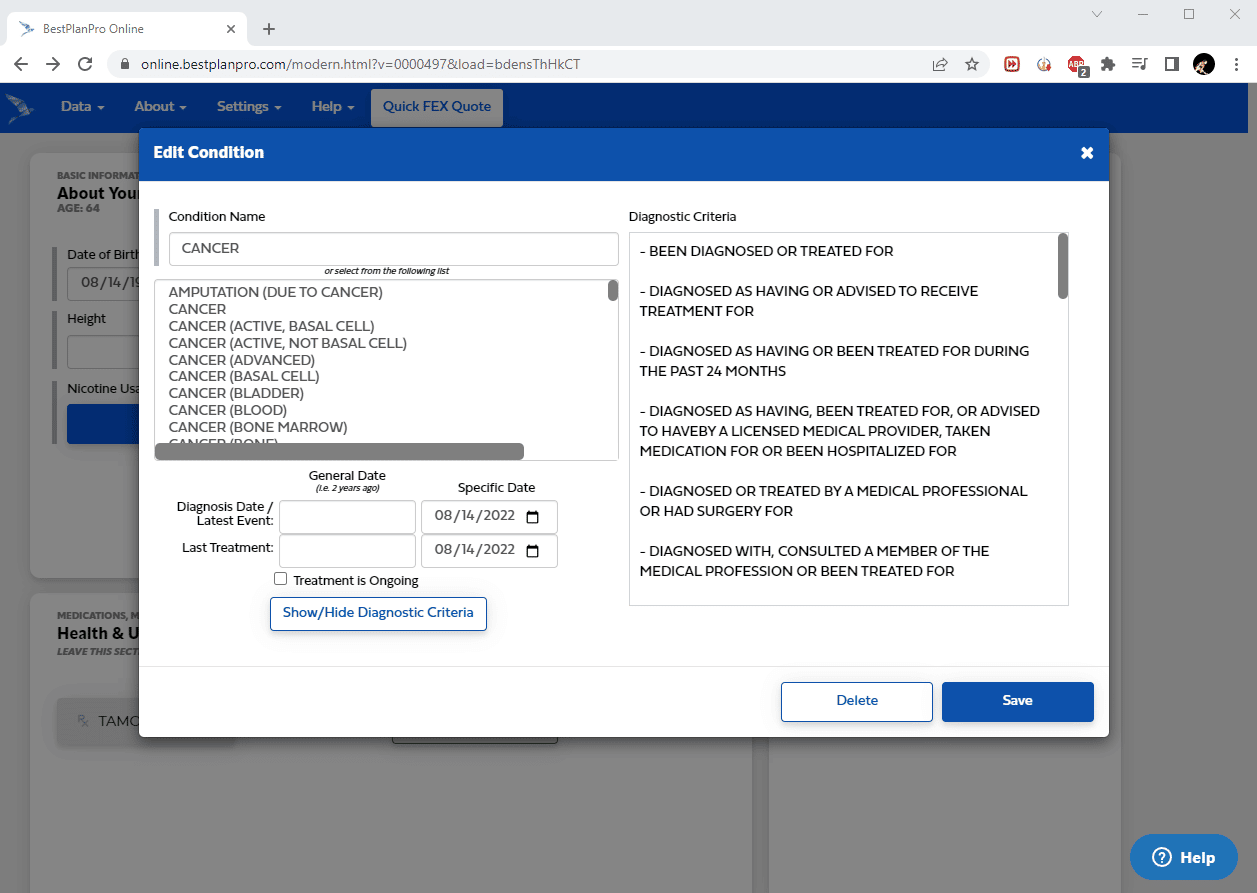
Minimizing Error.
Best Plan Pro is designed for precision and accuracy. Anywhere there may be a chance for error, our system is designed to either catch it or require the user to double check their work. Having conditions inferred by BPP minimizes potential errors by standardizing possible entries into the field. In the off chance that our system doesn’t have a condition listed, simply type it into the field and the condition will be added into the database in the future.
Leave a Reply